

Images
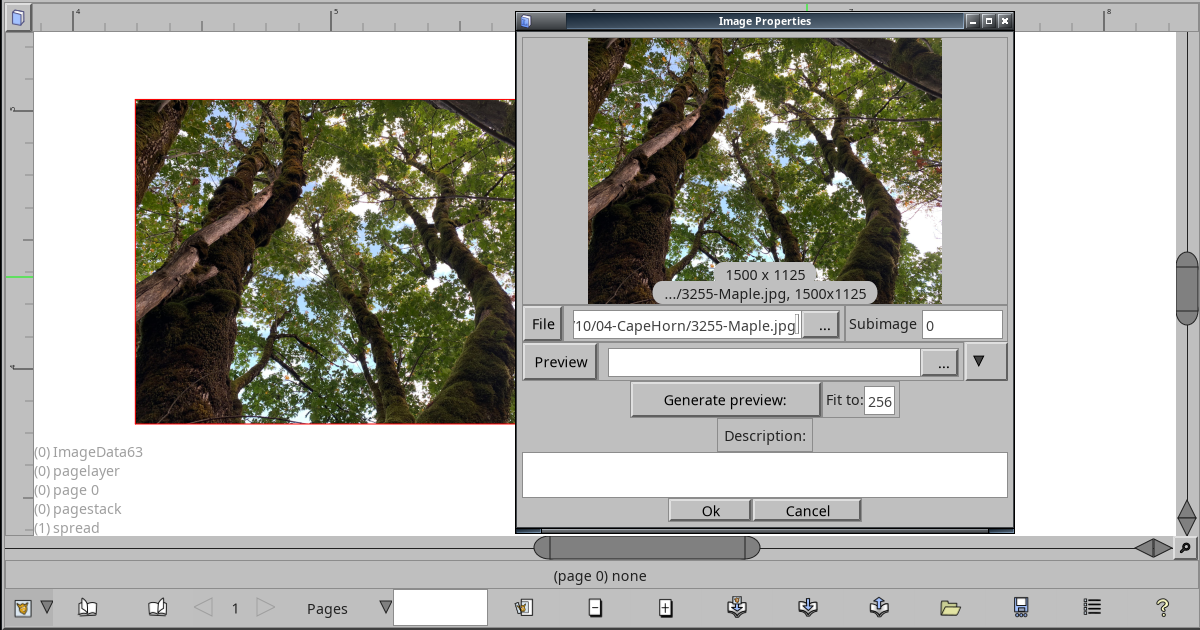
Image Tool
The Image Tool works with single images. Drag out a rectangle for an image, then double click to bring up the Image Info dialog to edit some associated data.
You can also scale an image at a particular point by holding control, clicking on that point and moving back and forth to scale up or down. Shift+Control lets you rotate the image around that point.
Images in Laidout can use a “preview”, kind of a lower resolution proxy image for better screen rendering performance. Otherwise, the interface frame rate grinds to a halt if your document contains lots of super high resolution tiffs.
The Image Info window lets you set that previews, with a few recommendations for preview image locations, such as freedesktop thumbnails which come in sizes from 128 px to 1024 px, or your own custom size and location.
Multiple Image Import
The other way of importing images is through the dedicated multiple Image Import dialog. If you drag in several images from a file browser, this will also activate the Image Import dialog for refinement of how images will be distributed in a document.
This was one of the first things implemented in Laidout, as Laidout was originally designed to quickly make a folded booklet just by dumping in many images from a directory, and fitting them to pages automatically. As such, this is an extremely hideous dialog that I’ve been meaning to rewrite for a very long time. I swear I’m getting to it eventually.

Misc settings
-
Align x and Align Y are used to position on a page. 0 is full left (or outside if importing to a folded book, and 100 is full right, or inside.
-
Exactly this many has a slightly hidden capability. If you write “1/2”, it will import one image every 2nd page.
-
Expand files with multiple images is for formats that contain multiple images, such as animated gifs, or PDFs. Currently, PDFs imported this way will be rendered straight to an image, rather than with other PDF information.